Table of contents Toc Icon
Table of contents Toc Icon
QuickBooks Desktop has been a go-to accounting solution for millions of businesses worldwide, offering powerful tools for bookkeeping, payroll, inventory management, and financial reporting.
Whether you’re a small business owner setting it up for the first time, an accountant installing it for a client, or simply moving QuickBooks to a new computer, the installation process is straightforward once you know the exact steps.
Getting the right setup is important. Not only does it save you from technical errors, but it also ensures your software is properly licensed and activated, so you can immediately start working on your company files.
Installing QuickBooks for the first time can feel technical, but with the right steps, you’ll be up and running quickly.
In this guide, we’ll walk you through the complete process of downloading, installing, and activating QuickBooks Desktop.
Step-by-Step Guide to Download and Install QuickBooks Desktop
Before downloading QuickBooks, confirm that your computer meets the system requirements for the version you want to install. Check QuickBooks System Requirements here.
Download QuickBooks
1. Visit https://downloads.quickbooks.com/app/qbdt/products.
2. Fill in the asked credentials, such as Select country, Select Product, and Select Version.
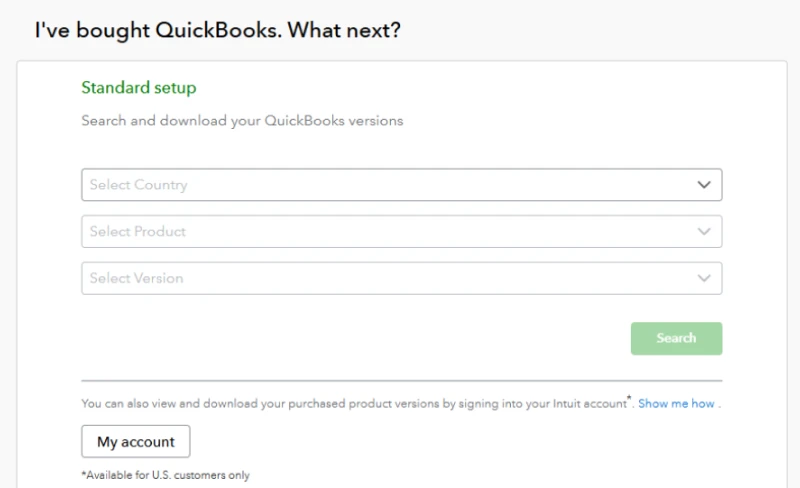
3. Thereafter, click on the Search option.
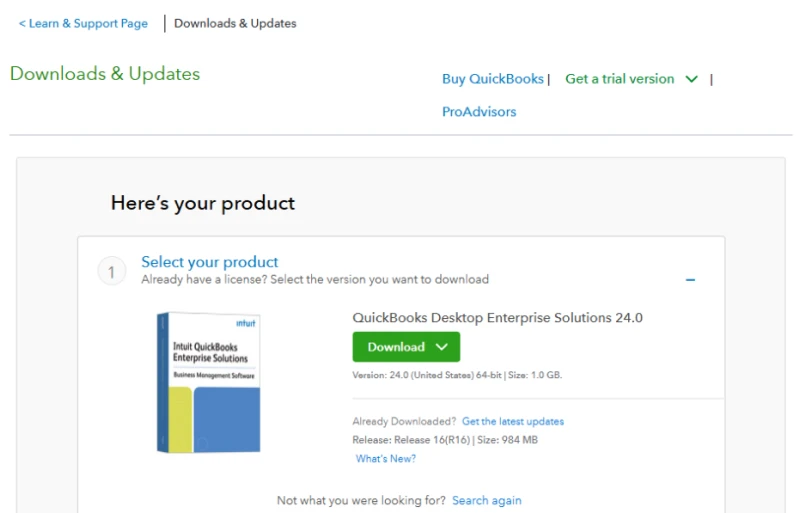
4. Click on Download and save the setup file to your computer.
Skip manual installations and run your QuickBooks securely on Ace Cloud Hosting’s servers
Install and Activate QuickBooks Desktop
Step 1: Open the Downloaded QuickBooks Setup
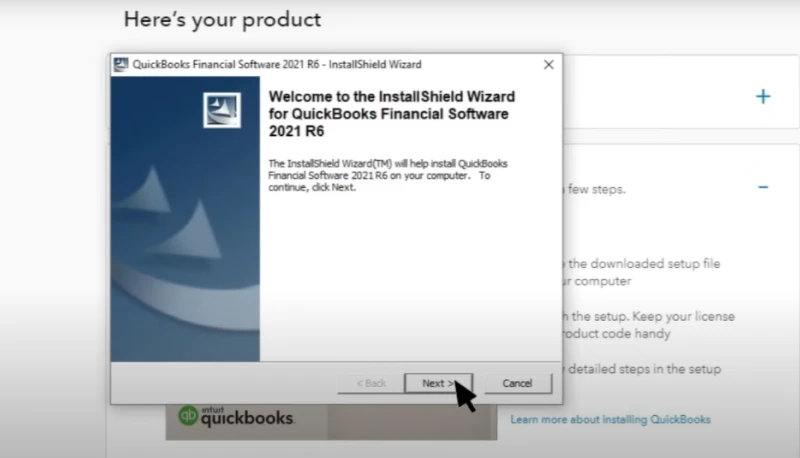
- Locate the QuickBooks setup folder (usually in your Downloads folder).
- Double-click the file. A QuickBooks product pop-up will appear.
- Click Next to continue.
Step 2: Accept the License Agreement
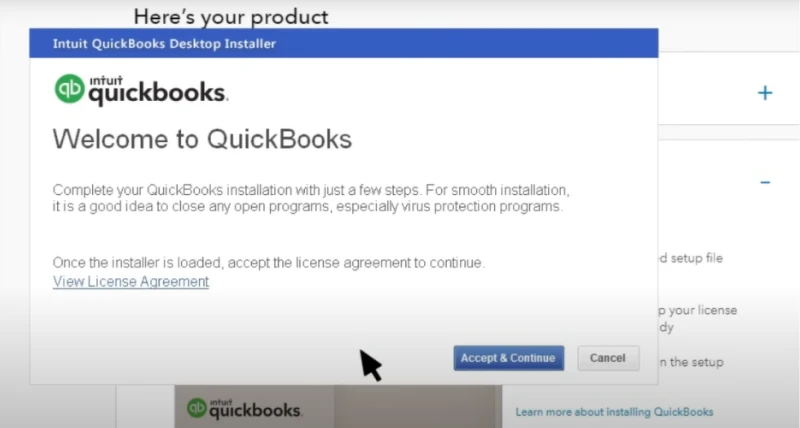
- The Intuit QuickBooks Desktop Installer window will open.
- Click Accept & Continue.
- Important: You can only proceed if you have a genuine QuickBooks license.
Step 3: Enter Product & License Number
You’ll now be asked to provide your license details.
Option 1: If you know your numbers
Enter your License Number and Product Number in the given fields
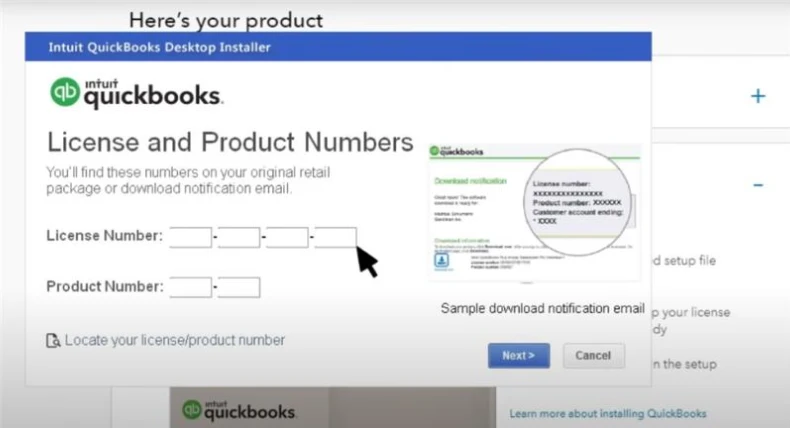
Option 2: If you don’t know your numbers
Click Locate your License & Product Number.
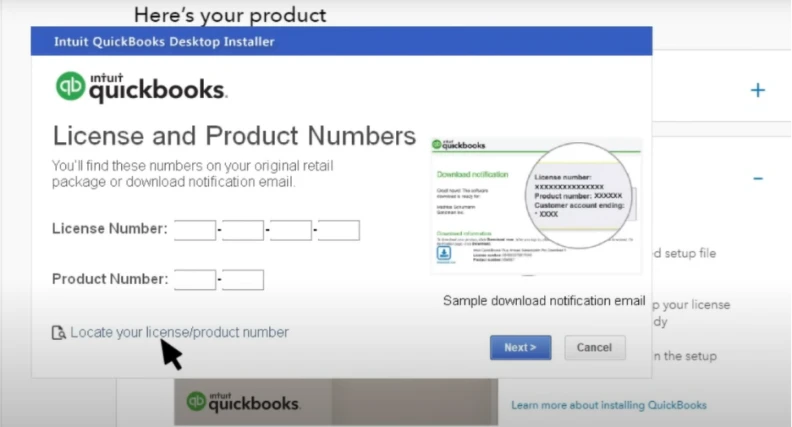
- On the next page, choose how you’d like to retrieve it:
- Business Email or
- Business Phone Number (the one used during purchase).
- Click Find License & Product Number
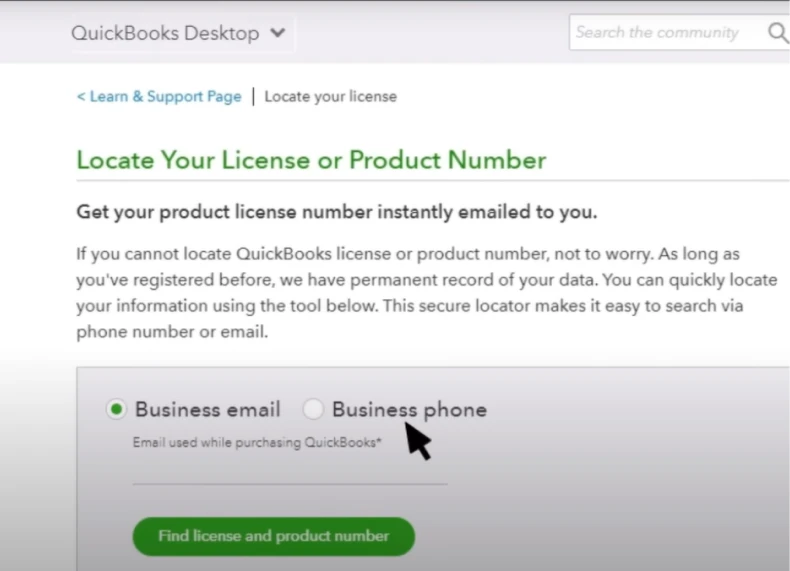
- You’ll receive your details via email or text.
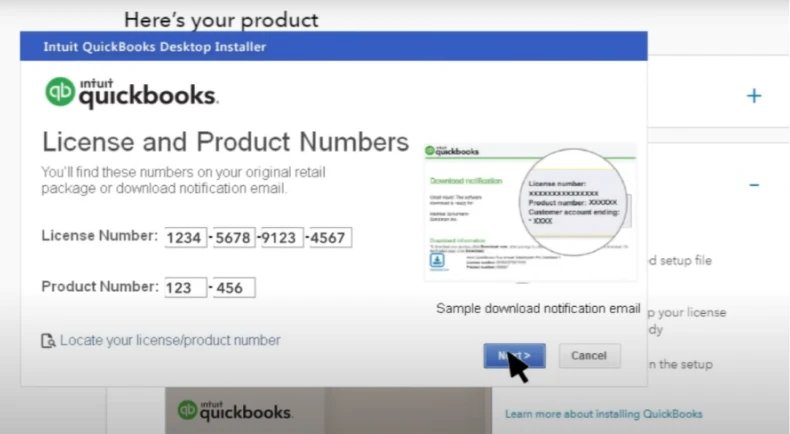
- Enter the License Number & Product Number.
- Enter them and click Next.
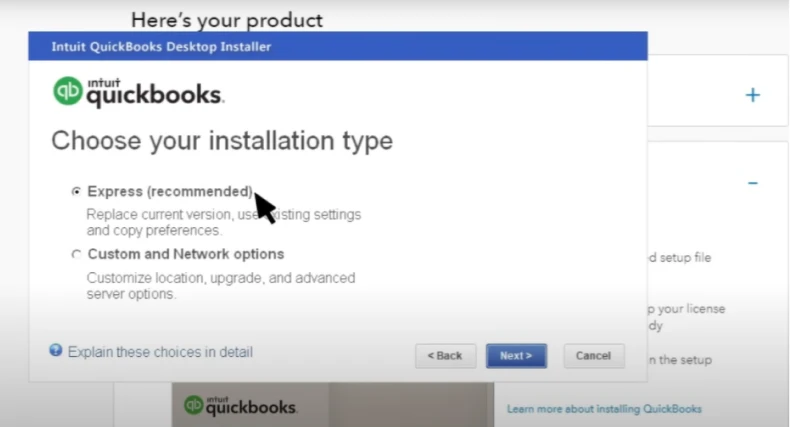
Step 4: Choose Installation Type
QuickBooks will now ask how you want to install:
- Express Install – Best for beginners or single users. Installs with default settings.
- Custom or Network Install – Recommended for advanced users or businesses running QuickBooks on multiple computers.
Select the option that suits you and click Next.
Step 5: Begin Installation
- On the Ready to Install window, click Install.
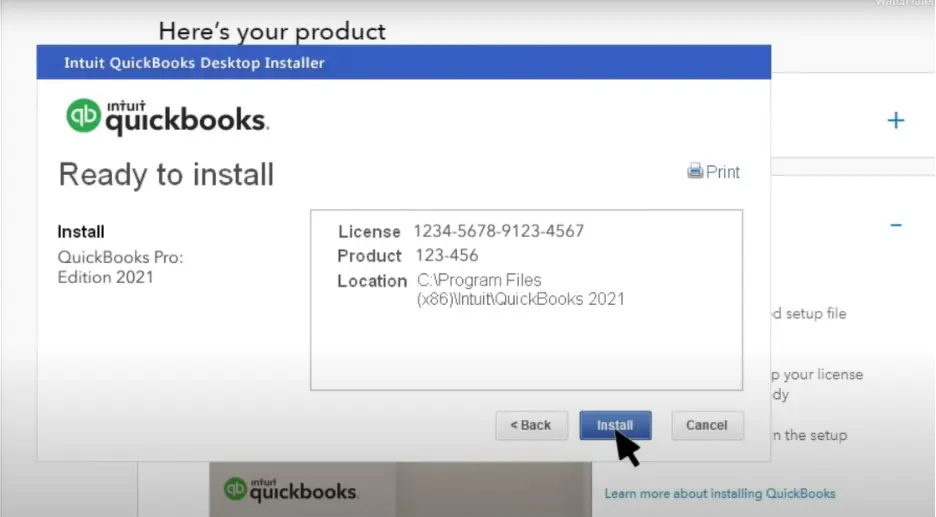
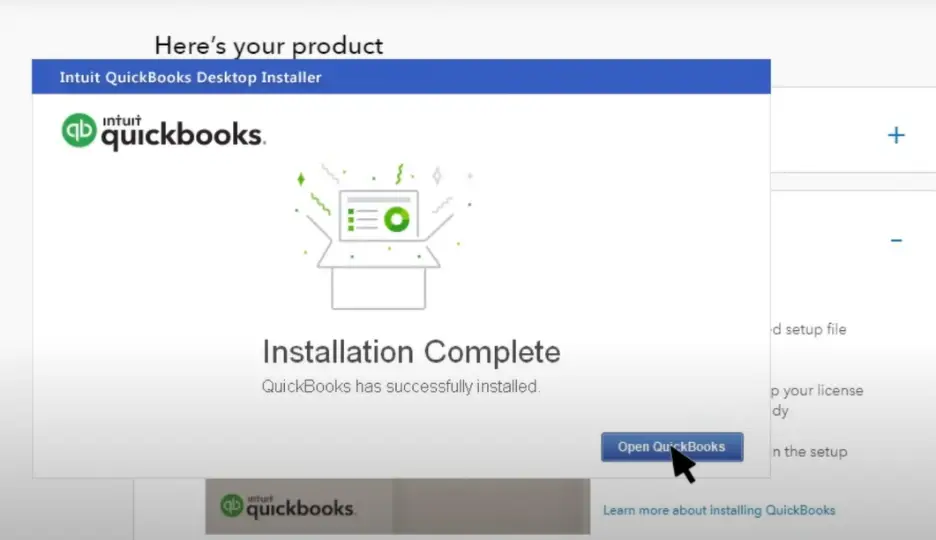
- The installation will start. Once complete, click Open QuickBooks.
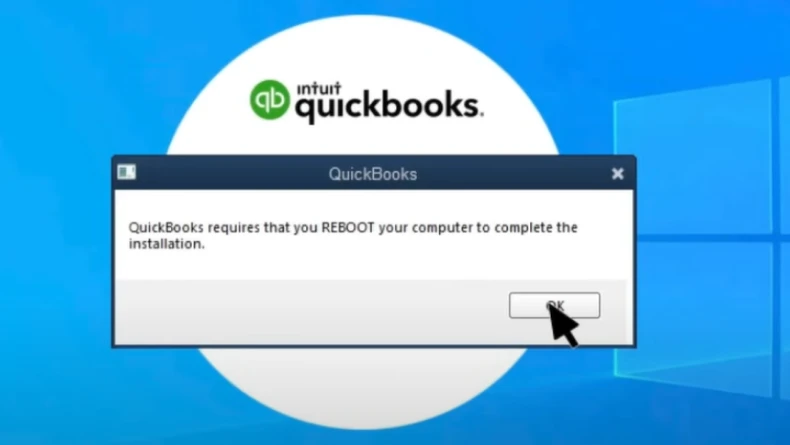
- QuickBooks may require a system reboot. Click OK to restart your computer.
Step 6: Activate QuickBooks
After the reboot:
- You’ll see the Activate QuickBooks Desktop Now pop-up.
- Click Begin Activation.
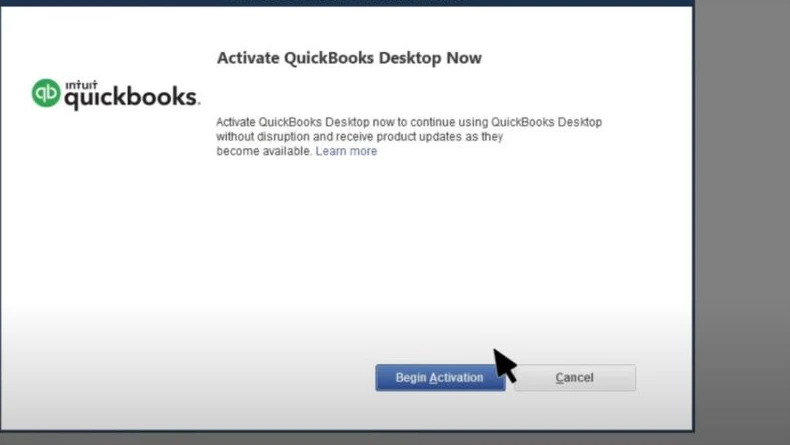
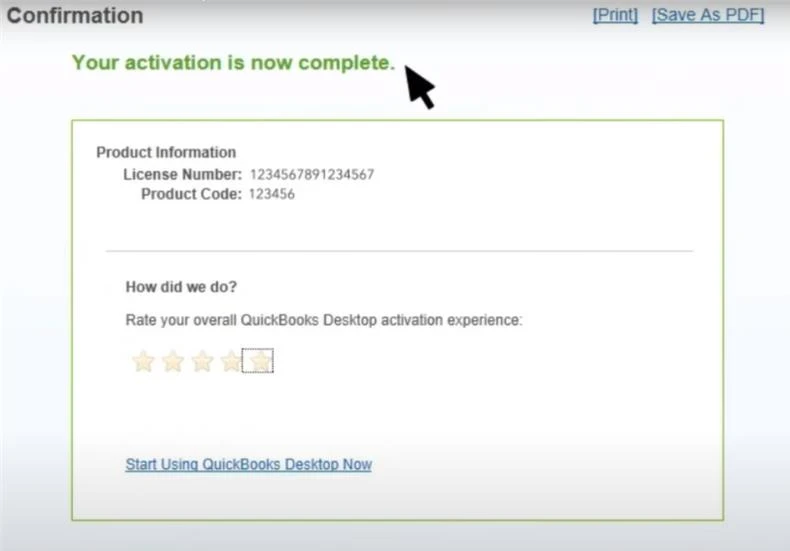
- QuickBooks will check your online connection and activate automatically
Enjoy faster performance, real-time collaboration, and top-tier data security with Ace Cloud Hosting.
All set. Launch QuickBooks
Downloading and installing QuickBooks is straightforward if you follow the right steps. With the software properly set up, you can easily focus on managing finances, tracking expenses, and streamlining your business operations.
Did you know you can run QuickBooks Desktop on the cloud and enable remote access to collaborate with your team and accountants in real time? From installation and user setup to permissions, security, and backups, everything is handled by QuickBooks cloud providers such as Ace Cloud Hosting. Experience it today with a 7-day free trial.