Table of contents Toc Icon
Table of contents Toc Icon
Data theft and credential abuse continue to rise as attackers use phishing, malware, and keylogging techniques to steal sensitive information in remote access environments. The 2025 DBIR reinforces this risk, showing that credential abuse drives most attacks across major vectors.
Verizon has reported that the exploitation of vulnerabilities continues to grow as an initial access vector for breaches, reaching 20%. This figure is close to that of credential abuse, which remains the most common vector.
Citrix Virtual Apps and Desktops helps reduce these risks with built-in anti-keylogging and anti-screen-capture controls. Anti-keylogging blocks tools that capture keystrokes and steal credentials, while anti-screen capture prevents screenshots or recording of sensitive on-screen activity during virtual sessions. Together, these features strengthen session-level security and limit data exposure.
Organizations use these protections to secure remote and hybrid work environments where users regularly access sensitive applications and data. This guide explains the step-by-step process for configuring anti-keylogging and anti-screen-capture in Citrix Virtual Desktop.
Ways to Configure Anti-keylogging and Anti-screen Capture in Virtual Desktop
Method 1: Using Web Studio
To configure Anti-keylogging and Anti-screen capture through Web Studio, follow these steps:
Step 1: Enable XML Trust
- Sign in to your Citrix DaaS™ account.
- Navigate to Manage > Settings > Enable XML trust.
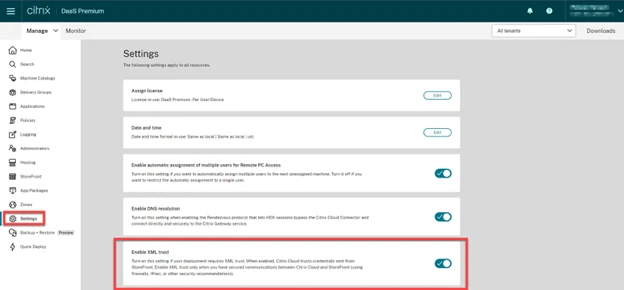
- Turn on the Enable XML trust toggle.
Step 2: Configure Delivery Group Settings
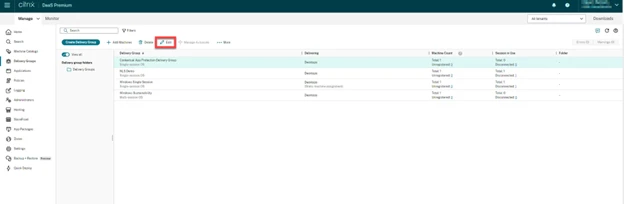
- Go to Manage > Delivery Groups in Citrix DaaS.
- Select the required delivery group.
- Click Edit from the action bar.
- Select App Protection.
- Check Anti-keylogging and Anti-screen capturing.
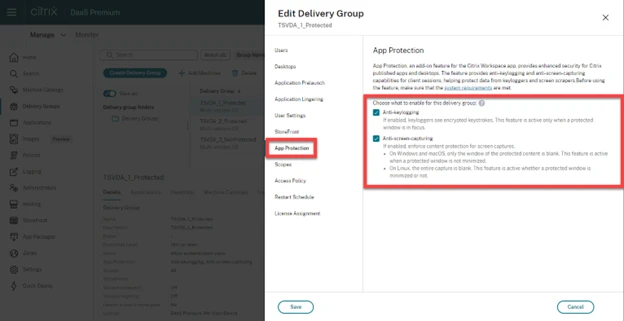
- Click Save to apply the changes.
Method 2: Using PowerShell
Note: In a Citrix DaaS environment, run these commands using the Citrix Virtual Apps and Desktops Remote PowerShell SDK on any machine except Citrix Cloud Connector machines.
Step 1: Set Delivery Group Protection Policies
- Open PowerShell on a Delivery Controller machine or a system with Studio installed and FMA PowerShell snap-ins.
- Run the following configuration for the required Delivery Group:
- AppProtectionKeyLoggingRequired: True
- AppProtectionScreenCaptureRequired: True
Pro Tip: Users can apply these policies separately for each Delivery Group. For example, enable only keylogging protection for DG1, only screen capture protection for DG2, or enable both protections together for DG3.
Step 2: Example Configuration
To enable both protections for a Delivery Group named DG3, run:
PS> Set-BrokerDesktopGroup -Name DG3 -AppProtectionKeyLoggingRequired $true -AppProtectionScreenCaptureRequired $true
Step 3: Verify Configuration
Run the following command to validate settings:
PS> Get-BrokerDesktopGroup -Property Name, AppProtectionKeyLoggingRequired, AppProtectionScreenCaptureRequired | Format-Table –AutoSize
Step 4: Enable XML Trust
Run the following command to enable XML trust:
PS> Set-BrokerSite -TrustRequestsSentToTheXmlServicePort $true
Important: Ensure the network between StoreFront and the Broker is properly secured.
Final Thoughts
You can configure anti-keylogging and anti-screen capture in Citrix VDI to strengthen protection against credential theft and unauthorized data exposure across virtual sessions. These controls help organizations block malicious keystroke capture attempts and restrict screen recording or screenshots, ensuring sensitive information stays protected throughout user activity. This adds a critical layer of defense in remote and hybrid work environments where users access business-critical apps and data from multiple endpoints.
Ace Cloud Hosting offers fully managed Citrix Virtual Desktops with enterprise-grade security, built-in protection controls, and 24/7 expert support, so you can focus on operations without handling complex configuration or maintenance. Start your free Desktop as a Service trial today to experience a secure virtual desktop environment within minutes.
FAQ
Can I enable these protections during authentication and self-service plug-in usage?
Yes, you can configure anti-keylogging and anti-screen capture for authentication workflows and the self-service plug-in to protect credentials during login, password entry, and account-related actions. Check the full procedure here.
Can these security settings be applied to web and SaaS applications?
Yes, you can extend these protections to web and SaaS apps to prevent sensitive data exposure during browser-based sessions and cloud application usage.
Do I need separate policies for different Citrix components?
Yes, Citrix requires separate policy configurations depending on the use case. You must define settings individually for virtual desktops, authentication processes, and web or SaaS application access.
Do these settings apply automatically across all Citrix environments?
No, you must enable and configure them separately based on the environment.
Do these features affect user experience or performance?
No, these controls run at the security policy level and do not significantly impact performance or the user experience in virtual sessions.
Are these features enough to fully secure a Citrix environment?
No, they are part of a layered security approach and should be used along with access control, MFA, encryption, and monitoring policies.
Can I use different policies for different user groups?
Yes, Citrix allows policy-based configuration, so you can apply different security levels based on user roles, departments, or access requirements.
Our experts are ready to assist with setup, troubleshooting, or any product issue. Get in touch now!