Table of contents Toc Icon
Table of contents Toc Icon
Many users may occasionally face login or authentication issues while accessing Citrix VDI. The system may fail to validate user credentials, repeatedly ask users to sign in, or display login errors that block access to virtual desktops and applications. These issues can interrupt workflows and delay access to important business resources.
Different factors can contribute to authentication failures, such as incorrect login credentials, communication issues with Active Directory, network disruptions, expired passwords, or Citrix configuration settings. Because the issue can originate from different components within the environment, identifying the actual cause is necessary before applying a solution.
This guide covers the common causes of login and authentication issues in Citrix VDI and the methods to troubleshoot and fix them.
Causes and Methods to Fix Login Failed or Authentication Issues in VDI
Cause 1: Login Issues While Using a Bookmarked or Old URL
Users may sometimes face login failures or pop-up errors when accessing VDI through bookmarked URLs or older saved links. Outdated links may redirect users incorrectly or cause authentication issues during the sign-in process. Browser settings, such as blocked pop-ups, can also prevent the login page from loading properly.
Method to Fix
Follow these steps to resolve the issue:
- Open a new browser window and access the Citrix login page directly instead of using a bookmarked link.
- Avoid using saved or outdated URLs for future login attempts.
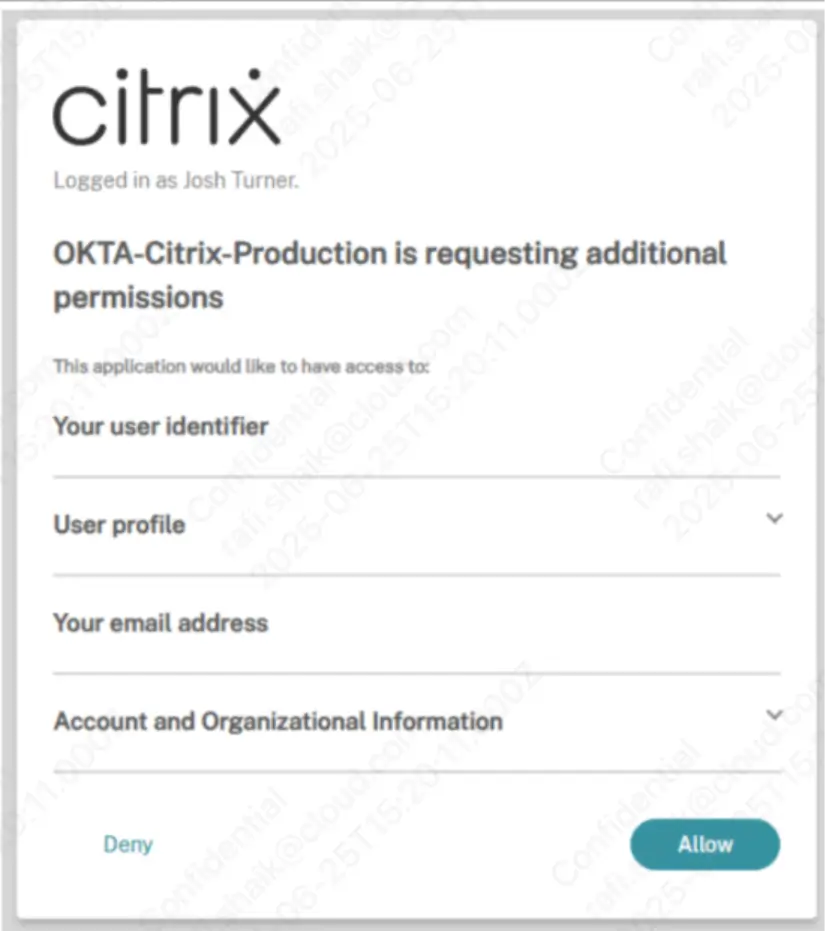
- Allow browser pop-ups if prompted during the sign-in process.
- If a browser pop-up permission message appears, click Allow to continue the authentication process successfully.
Cause 2: Account Locked After Multiple Failed Login Attempts
Users may get locked out of their accounts after entering incorrect credentials multiple times. This security measure helps prevent unauthorized access attempts but can temporarily block users from signing in to their VDI environment.
Method to Fix
Follow these steps to regain access:
- Wait for 30 minutes for the account to unlock automatically.
- After the waiting period, clear your browser cache and cookies or try logging in using an Incognito or InPrivate browser window.
- Contact the support team if the issue continues after trying these steps.
Cause 3: Incorrect Password During Login
Users may experience login failures if they enter an incorrect password or if the saved password is outdated. This issue can prevent successful authentication and block access to the Citrix VDI environment.
Method to Fix
Follow these steps to reset your password:
- Go to the My Account home page.
- Select Forgot Password.
- Enter your Login ID/Username, complete the reCAPTCHA verification, and click Continue.
- If the account exists, you will receive an email containing your username and a password reset link. If no account is associated with the details entered, you will not receive an email.
- Click Set a New Password and create a new password.
- Click Continue and sign in using the new password.
Password requirements:
- Minimum 8 characters
- At least one capital letter
- At least one symbol (! * @ ? % $)
- At least one number
If you continue to experience other login-related issues, refer to the login troubleshooting guide for additional steps.
For a KB titled Login Failed or Authentication Issues in Citrix VDI, I would not create four separate causes. These look like supporting MFA scenarios under one broader issue. Keep it simple and user-focused.
You can structure it like this:
Cause 4: Multi-Factor Authentication (MFA) Issues
Users may experience login or authentication failures if there is a problem with the multi-factor authentication process. MFA issues can occur during first-time enrollment, account recovery setup, incorrect verification codes, or while resetting MFA settings. These problems can prevent users from completing authentication and accessing their Citrix VDI environment.
Method to Fix
Use the appropriate troubleshooting steps based on your issue:
- Complete the MFA enrollment process if you are logging in for the first time.
- Configure account recovery methods to avoid future access issues.
- Reset MFA using a recovery email address or backup codes if you cannot complete authentication.
- Verify the code entered and retry if you receive an incorrect MFA code error.
If the issue continues after completing these steps, contact support for further assistance.
Cause 5: Access Denied Errors During Login
Users may sometimes receive access denied messages while signing in to VDI. These errors can occur due to outdated URLs, account permission restrictions, or location-related access checks that prevent users from completing authentication successfully.
Method to Fix
Apply the relevant solution based on the error message displayed:
a. If you see: “We’re sorry. Access is denied.”
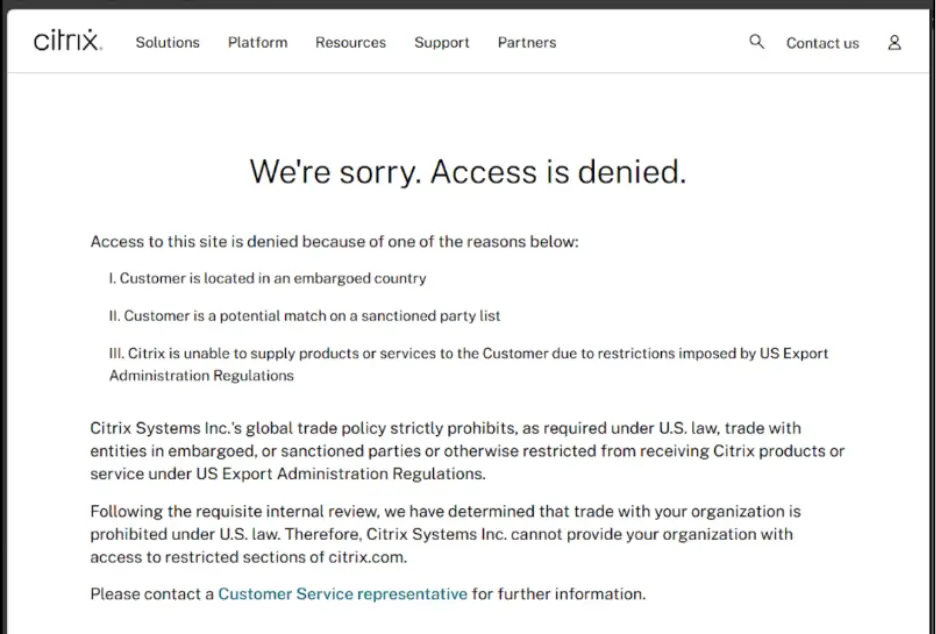
- Open the Citrix account page directly instead of using bookmarked or old URLs.
- Log in to your account.
- Open My Account and launch Partner Central.
b. If you see: “Access denied – Your access to Citrix resources is denied”
- Contact your Account Representative to verify your access permissions.
- If you are unsure who your Account Representative is, contact support.
c. If you see: “Access denied – Customer is located in an embargoed country.”
If you are not located in an embargoed country:
- Clear browser cache and cookies.
- Try signing in using an Incognito or InPrivate browser window.
- Contact support if the issue continues.
Final Thoughts
Login and authentication issues in VDI can prevent users from accessing virtual desktops and business applications, leading to delays and productivity disruptions. Identifying the root cause and applying the appropriate fix can help restore access and ensure a smoother login experience.
Ace Cloud Hosting offers fully managed Citrix Virtual Desktop with enterprise-grade security, built-in monitoring capabilities, and 24x7 support, so you don’t have to manage complex setups or ongoing maintenance. Start your free trial today to have a live virtual desktop experience within minutes.
Our experts are ready to assist with setup, troubleshooting, or any product issue. Get in touch now!