Table of contents Toc Icon
Table of contents Toc Icon
This guide walks you through enabling or disabling Microsoft Office access for individual users through MyPortal, giving you precise control over who can use MS Office within your Ace Cloud Hosting environment.
MyPortal gives account owners a single place to manage user-level permissions, and MS Office access is one of them. As long as Microsoft Office is already installed on your server, you can grant or revoke access for any user directly from the Users section.
Before you start, sign in to MyPortal and head to the Users section. Confirm that the user you want to update appears in the list and that the MS Office column is visible. If that column is missing, Microsoft Office hasn’t been installed on your server yet.
Steps to enable MS Office access
Step 1: After logging in, go to the area where all account users are listed. This is the same place where you can manage other user-related settings such as MFA, download options, and account actions.
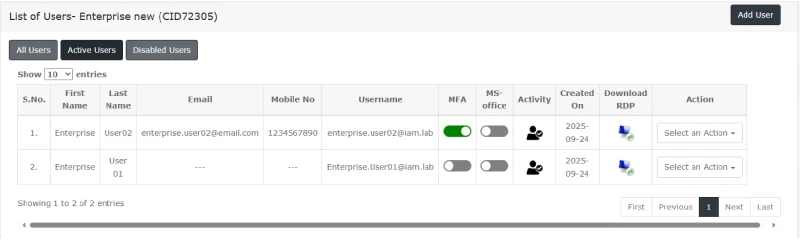
Step 2: Scroll through the user list and identify the correct account. Make sure you are selecting the right user before making any changes. This is helpful when you manage access for multiple team members under one account.
Step 3: In the user row, locate the MS Office column and move the slider for the user who needs access. This starts with the Office access setup for that account. The slider appears directly in the user list, making it easy to locate.
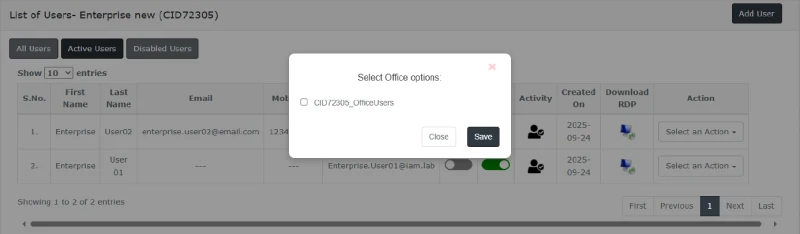
Step 4: After moving the slider, a pop-up window will appear with the available Office group option. Choose the group listed on the screen. This step connects the user to the Office access group available for your environment.
Step 5: Once the right option is selected, click Save to apply the change. This completes the setup request for that user.
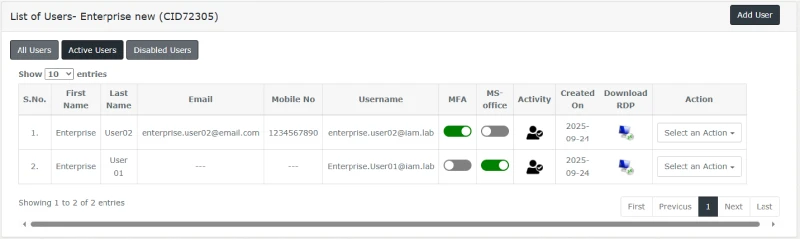
Step 6: After access is enabled, the MS Office slider will turn green, confirming that the user now has MS Office access enabled in MyPortal.
Important note
The MS Office column appears only when Microsoft Office is already installed on the server. If you do not see this option in MyPortal, contact the support team first and request the installation.
Need help?
If the MS Office option is missing, if the group selection does not appear, or if access is not added after you click Save, contact the Ace Cloud Hosting support team. The support team can check whether Microsoft Office is installed on the server, whether the correct group is available, and whether the user setting has been applied properly.
By hosting QuickBooks on the cloud with us, you not only gain uninterrupted access to your accounting data but also unlock dedicated support designed to keep your business moving forward—without the errors or downtime.
Our experts are ready to assist with setup, troubleshooting, or any product issue. Get in touch now!