Drake Software Printing Issues

  • 651 Viewed
  • Updated on April 13, 2015
  • 1 Min Read
     
    Toc Icon

    Table of contents Toc Icon

      Step 1 : Go to services.msc and stop Print Spooler service.
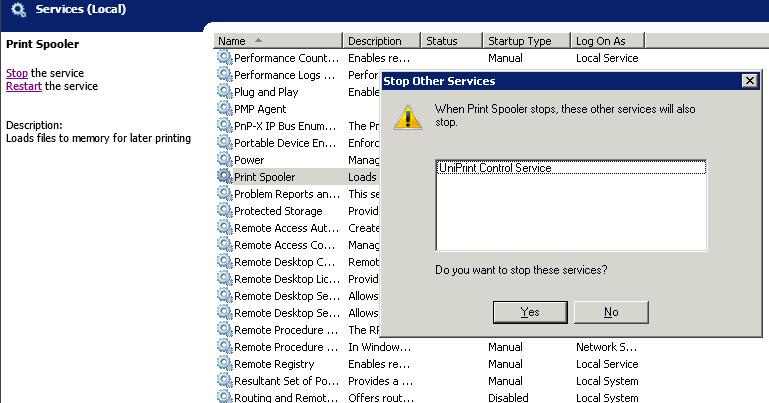
       

      Drake-step1


      Step 2 : Start Print Spooler and Uniprint Control Service.

      Step 3 : Open Drake Software and go to setup> Printing>Printer setup
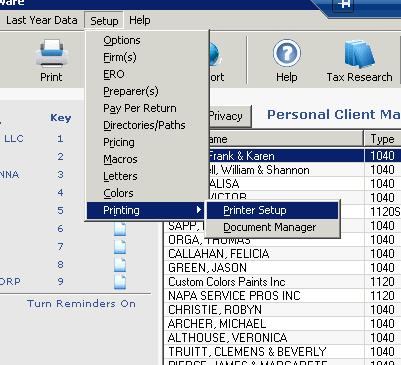
       

      Drake-step2


      Step 4 : Configure settings as per below image.

       

      Drake-step3


      Step 5 : Click on Edit Printer Settings and configure it as per below image and click on update.


      Drake-step4


      Step 6 : Click Save. This will close the Printer Set up.
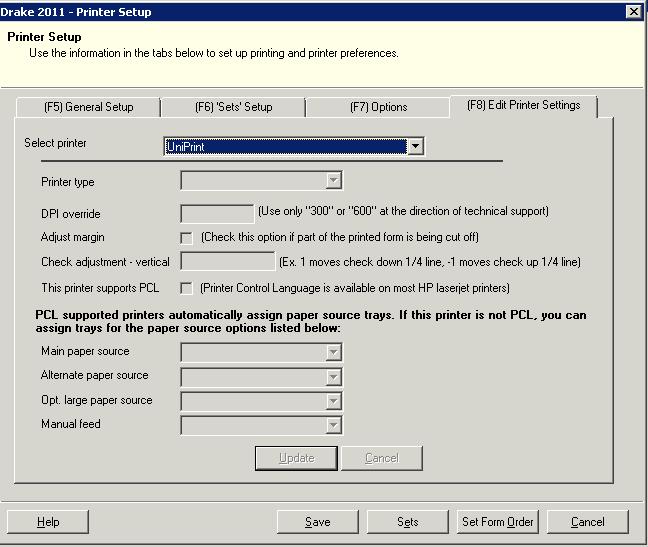
       

      Drake-step5


      Try to print documents now. It should print fine.

      Still Need Help? We’re Here For You!

      Our experts are ready to assist with setup, troubleshooting, or any product issue. Get in touch now!

      SHARE:

      About Ace Cloud Hosting

      Ace Cloud Hosting's profile picture

      Ace Cloud Hosting is a trusted cloud solutions provider with 15+ years of experience serving accountants, CPAs, SMBs, and enterprise businesses. We specialize in delivering application hosting, virtual desktops, managed IT, and cybersecurity solutions. With US-based data centers, 99.99% uptime, and 24×7 expert support, Ace Cloud Hosting helps businesses access the high-performance and secure solutions they need.

      Find Ace Cloud Hosting on:

      Leave a Reply

      Your email address will not be published. Required fields are marked *

      Copy link