Table of contents Toc Icon
Table of contents Toc Icon
When we cannot backup our QuickBooks company file, we can run the Rebuild Data Utility and bypass the backup part of the process. Open QuickBooks and follow the below mentioned procedure to the word:
- In the menu bar, select Window > Close All. (This process will not work if you have open any QuickBooks windows.)
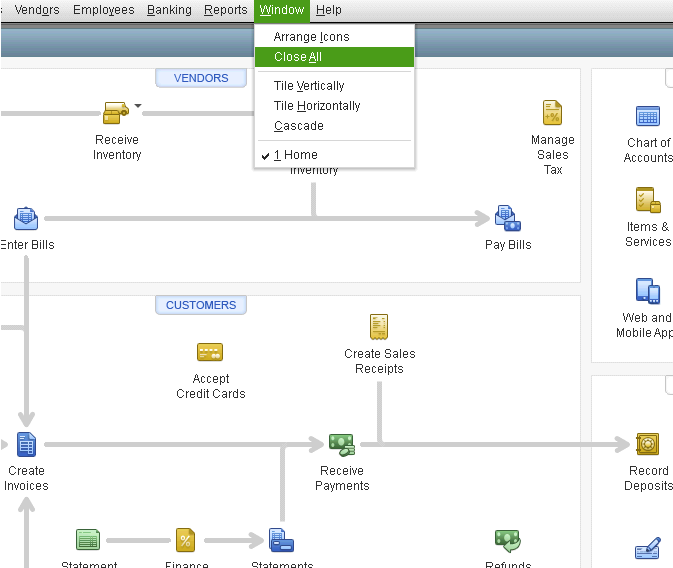
2. In the menu bar, select File > Utilities.
3. On your keyboard, press and hold the CTRL key.
4. On the Utilities menu, choose Rebuild Data.
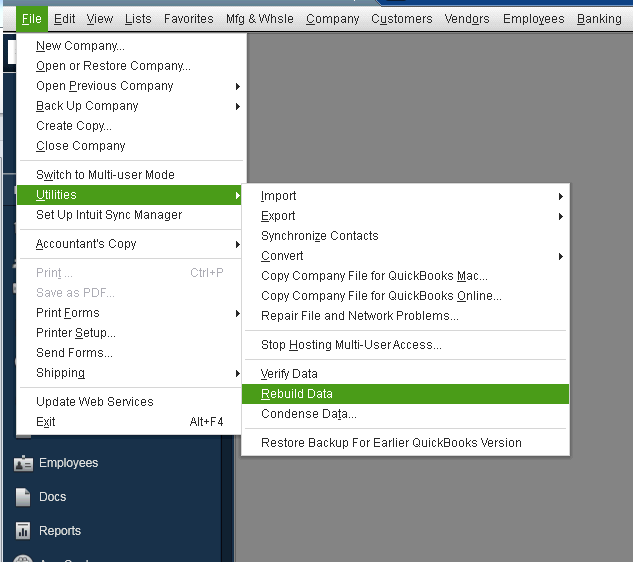
5. If the message pops up “Before rebuilding your data, QuickBooks will need to close all open Windows” then QuickBooks will not bypass the data file back up. Click OK, then cancel the backup and repeat from Step 1.
6. Release the CTRL key.
7. QuickBooks displays this message: REBUILD: Rebuilding without first backing up of the company file is not recommended. Are you sure you want to continue?
8. Click OK and the Rebuild Data Utility will run.
Our experts are ready to assist with setup, troubleshooting, or any product issue. Get in touch now!